How to Use the EasySwing Stock Screener: A Complete Walkthrough
The screener is your edge — but only if you know how to use it
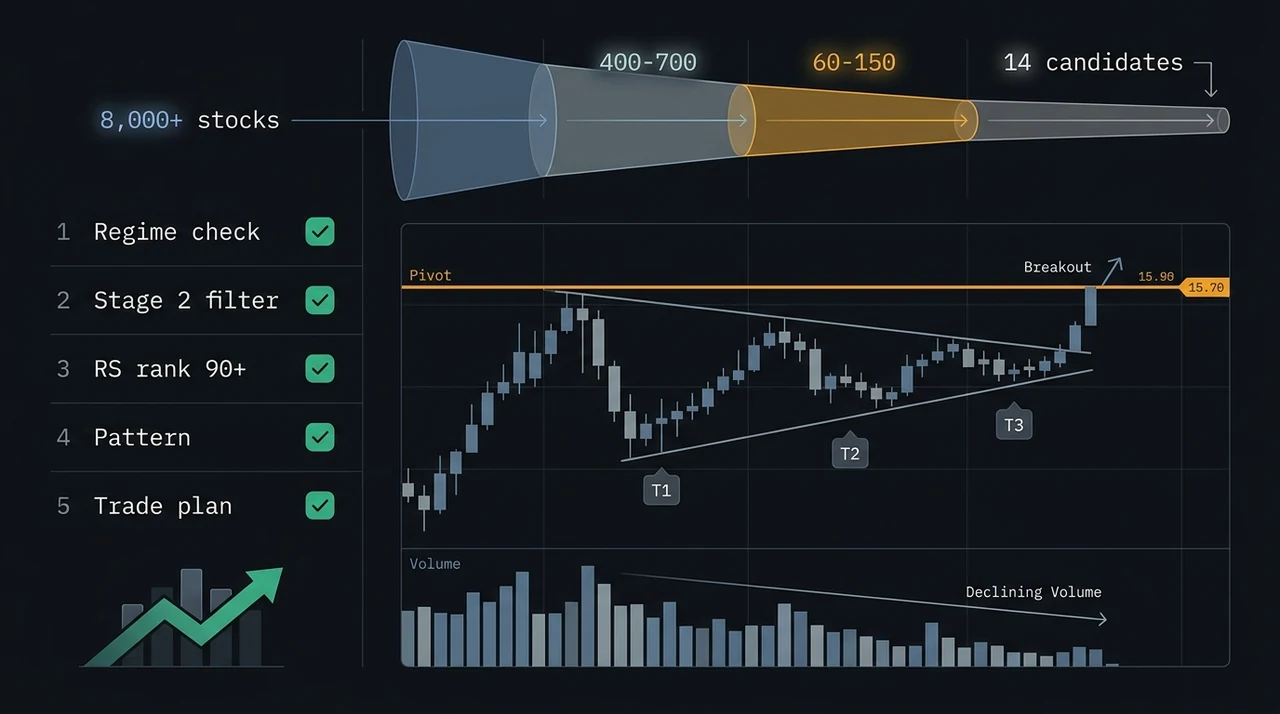
Most stock screeners give you a list of tickers that match some filter criteria. That's table stakes. A good screener for swing traders does three things most screeners don't: it understands strategy context (not just raw numbers), it refreshes with the market (not once a day), and it tells you exactly where to enter, where to stop out, and what to target. EasySwing's screener — the StockFinder — does all three.
This walkthrough covers every feature from first click to saved alert. By the end, you'll know how to find high-conviction setups in under 60 seconds.
Getting started: the StockFinder tab
When you open EasySwing's dashboard and click the StockFinder tab, you'll see the screener interface with three zones: the filter panel on the left, the results grid in the center, and a detail card that expands when you click any row.
By default, the screener loads with small-cap and mid-cap filters active ($200M to $20B market cap). This is intentional — small and mid caps are where swing trading returns are most concentrated. Institutional coverage is thinner, pricing is less efficient, and momentum effects are stronger. You can toggle large caps on with one click if you want the full universe.
The screener draws from a universe of 2,000+ US stocks, refreshed twice daily — once around midday and once after the market close. Every stock goes through EasySwing's full enrichment pipeline: OHLCV data, moving averages, volume analysis, relative strength ranking, Stage 2 checks, and strategy pattern detection.
Filter categories: what you can screen for
The filter panel lets you narrow the universe across several dimensions:
- Market cap — Toggle between Small ($200M-$2B), Mid ($2B-$20B), and Large ($20B+). Multi-select, so you can combine any buckets.
- Sector — Filter by GICS sector (Technology, Healthcare, Industrials, etc.). Useful when you want to focus on sector rotation plays.
- RS rank — Set a minimum relative strength rank. RS 90+ filters for market leaders; RS 70+ gives a broader scan.
- Volume — Minimum average daily volume. Helps avoid illiquid names where entries and exits slip.
- Price range — Min and max price. Many swing traders prefer the $10-$200 range for optimal position sizing.
- Setup tags — Filter for specific technical setups: VCP, Pullback, Mean Reversion, Power Earnings Gap, and more.
Every filter change updates results instantly — there's no "run scan" button. The filtering happens client-side on the pre-computed snapshot, so it's sub-millisecond even on 2,000+ stocks.
Strategy mode vs raw mode
This is the most important distinction in the screener, and the feature that separates EasySwing from generic screeners.
Strategy mode lets you select one of EasySwing's 13 named strategies and a minimum grade. For example: "Show me all VCP Breakout setups graded B or better." The screener returns only stocks where EasySwing's strategy engine has detected that specific pattern with sufficient confluence to earn the grade you specified.
EasySwing detects 13 strategies — see the strategies hub for the full list. The foundational set includes VCP Breakout, Trend Pullback, Swing Condor, Cup & Handle, and Qullamaggie Breakout — and others.
Each strategy assigns a grade from A+ (highest conviction) down to C. Grade A+ means multiple confirming signals aligned — trend, volume, relative strength, and the specific pattern criteria all check out. Grade C means the pattern is present but most confluence factors are weaker.
Raw mode is for when you want to build your own custom screen using filter conditions directly. No strategy logic — just your criteria applied against the full universe. This is useful for exploring or building screens around metrics that don't map to a single named strategy.
You can't mix the two modes on the same scan. Strategy mode and raw mode are mutually exclusive — the UI enforces this to keep results clean and interpretable.
Reading the results grid
Each row in the results grid shows:
- Symbol and company name — Click to expand the detail card
- Setup tags — Coloured pill badges showing which patterns are active (VCP, S2, Pullback, etc.). A stock can carry multiple tags simultaneously.
- Strategy grade — A+/A/B+/B/C badge if the stock matches a named strategy. Color-coded: green for A+/A, blue for B+, amber for B, muted for C.
- Momentum score — A 0-100 composite measuring short-term price momentum, volume trend, and acceleration
- RS badge — The stock's relative strength rank as a coloured badge. Green for 90+, amber for 80-89.
- Price and change — Current price and intraday percentage change
Results are sortable by any column. The default sort is by strategy score (highest first), which surfaces the setups with the strongest overall confluence.
The setup card deep-dive
Click any row to expand the setup card. This is where EasySwing earns its keep. The card shows:
- Entry price — The calculated entry level based on the specific strategy. For a VCP, this is the pivot point. For a pullback, it's the MA bounce level.
- Stop loss — ATR-based stop placement, adjusted for the stock's volatility. Not an arbitrary percentage — it's calibrated to give the trade room to breathe without exposing you to excessive risk.
- Target 1 and Target 2 — Two profit targets based on the strategy's expected move. Target 1 is the conservative partial-exit level; Target 2 is the full-move objective.
- R-multiple — The reward-to-risk ratio. If your stop is $2 below entry and Target 1 is $4 above, that's a 2R setup. EasySwing only surfaces setups with a minimum 2:1 reward-to-risk. For more on how to use R-multiples for position sizing, see our dedicated guide.
- Direction — Long or short. All 13 currently named strategies are long-biased — the short-side strategies (Bear Flag, RSI Overbought) are currently inactive after re-validation found no permutation-tested edge on the present holdout.
- Risk bar — A visual bar showing stop, entry, current price, and targets on a single axis. Green zone above entry, red zone below stop.
The setup card gives you everything you need to evaluate a trade in seconds: where to get in, where to get out if wrong, and where to take profits if right.
Saving a scan as an alert
Found a screen you like? Save it as an alert and EasySwing will notify you when new stocks match your criteria.
From the StockFinder, click Save as Alert. Your current filter configuration transfers directly into the alert builder. You have two alert modes:
- Strategy alert — Pick a strategy and minimum grade. EasySwing notifies you when a new stock earns that grade for that strategy. Example: "Alert me when any stock gets a Grade A VCP Breakout."
- Raw alert — Save your custom filter conditions as an alert. Example: "Alert me when any stock with RS 90+, market cap $2B-$20B, and a Pullback tag appears."
Alerts are evaluated during each enrichment run (twice daily). When new matches are found, you get a Telegram notification with the symbol, setup details, and a link to the full setup card in EasySwing.
You can manage all your alerts from the Alerts tab — edit conditions, toggle active/inactive, or delete. Each alert also has a Test button so you can verify it fires correctly before waiting for the next scan.
Using preset screens
Not sure where to start? EasySwing includes 7 built-in preset screens that cover the most common swing trading scans.
Presets load with one click and override your current filters. They're designed as starting points — you can modify any preset's filters after loading it. The default screen (small + mid cap) is what loads when you first open StockFinder.
Presets are especially useful for newer traders who aren't sure which filter combinations work well together. Each preset encodes a proven screening approach used by experienced swing traders.
Pro tips from power users
Check the market regime first. EasySwing shows the current market regime (Bull, Correction, Bear, Choppy, or Recovery) at the top of the dashboard. In a Bear or Choppy regime, reduce position sizes and be more selective with entries. The best setups in a bad market still fail more often than mediocre setups in a good market.
Combine RS rank with strategy mode. Set RS to 90+ and then scan for a specific strategy. This gives you the intersection of relative strength leaders and active technical setups — the highest-probability trades.
Use the watchlist as a staging area. When you find a setup that's close but not quite ready (e.g., a VCP that needs one more contraction), add it to your watchlist with a note. When the setup matures, you'll get a notification.
Layer filters gradually. Start broad, then narrow. If you start with too many filters, you might filter out every stock and miss setups that are 90% there. Begin with market cap + RS rank, see what comes back, then add sector or setup tag filters.
Pair the screener with the AI assistant. If you've connected EasySwing via MCP, you can ask your AI assistant to scan for setups conversationally. "Show me Grade A pullback setups with RS above 90" works as a prompt — and returns the same results as the visual screener.
Key Takeaways
- EasySwing's StockFinder screens 2,000+ US stocks refreshed twice daily with full technical enrichment
- Strategy mode matches stocks against 13 named strategies with A+/A/B+/B/C grades — use this for highest-conviction setups
- Raw mode lets you build custom screens with any combination of filters
- Every setup card includes entry, stop, targets, R-multiple, and direction — everything you need to evaluate a trade
- Save any screen as a Telegram alert to get notified when new matches appear
- 7 built-in presets give you proven starting points for common swing trading scans
- Always check the market regime before acting on screener results — context matters more than any single setup
- Combine RS rank 90+ with strategy mode for the highest-probability filter combination
Frequently Asked Questions
How often is the screener data updated?
EasySwing's enrichment pipeline runs twice daily — once around midday (Eastern) and once after the market close at 4 PM ET. Each run processes the full universe of 2,000+ stocks through all indicators, strategy detection, and scoring. The data you see in the screener reflects the most recent completed run.
What's the difference between setup tags and strategy grades?
Setup tags (like VCP, S2, Pullback) are individual technical patterns detected on a stock — a stock can carry multiple tags simultaneously. Strategy grades (A, B, C) are assigned by the strategy engine when a stock matches a complete named strategy with sufficient confluence. Think of tags as ingredients and grades as the recipe's overall quality score.
Can I screen for short setups?
Note: EasySwing previously validated two short-side strategies (Bear Flag, RSI Overbought). They are currently inactive after re-validation found no permutation-tested edge on the present holdout. All 13 currently active strategies are long-biased.
Do I need a subscription to use the screener?
The screener is available to EasySwing subscribers. The public signals page at /signals shows a preview of today's top setups with blurred entry/stop/target details. Subscribers see full setup cards with all levels, and can save scans as alerts.
Can I use the screener from an AI assistant?
Yes. If you've connected EasySwing via the MCP integration, you can ask your AI assistant to scan for setups using natural language. Prompts like "scan for Grade A VCP setups with RS above 90" return the same results as the visual screener — formatted for conversation.
EasySwing screens for swing trading setups across 2,000+ US stocks. For more on the strategies behind the screener, read about VCP patterns, Stage 2 analysis, and relative strength ranking. Scan results are for informational purposes only and do not constitute investment advice. See our Risk Disclaimer.
Disclaimer: This article is for educational purposes only and does not constitute investment advice. EasySwing is a stock screening tool, not a registered investment advisor. All trading involves risk. Read our full disclaimer →